Christmas AI video from a holiday photo you already love.
Upload one Christmas photo, press one button and get a short Christmas AI video as an MP4. Writing is optional: our built-in holiday motion lets soft snow fall, makes the lights twinkle and adds a slow camera move, while asking the AI to keep every face and detail as it is.
Sign in with Google or Apple and your Christmas AI video starts rendering right away. Your first video is free.
Christmas AI video in one click · First video free · Failed runs refunded
Christmas AI video examples, one click each.
Each Christmas AI video here began as a single holiday photo. We uploaded each picture and pressed one button: the built-in Christmas motion, no prompt, no editing, no second try. The model and length sit under each clip.
 Before
A couple in Santa hats raising a toast by the Christmas lights
The built-in Christmas motion, nothing written
Kling O3 · 5 s
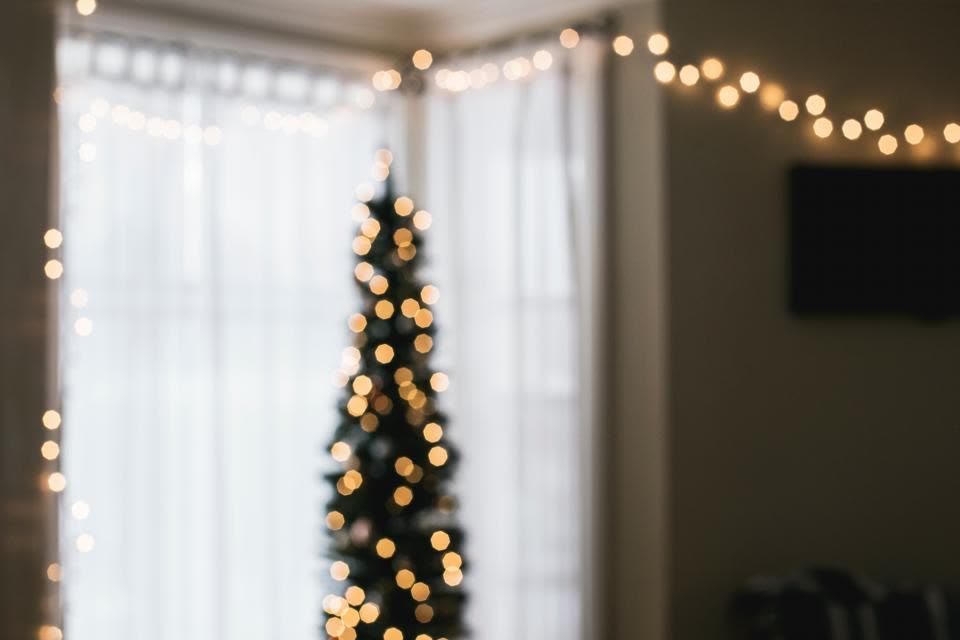 Before
A lit Christmas tree by a living-room window
The built-in Christmas motion, nothing written
Kling O3 · 5 s
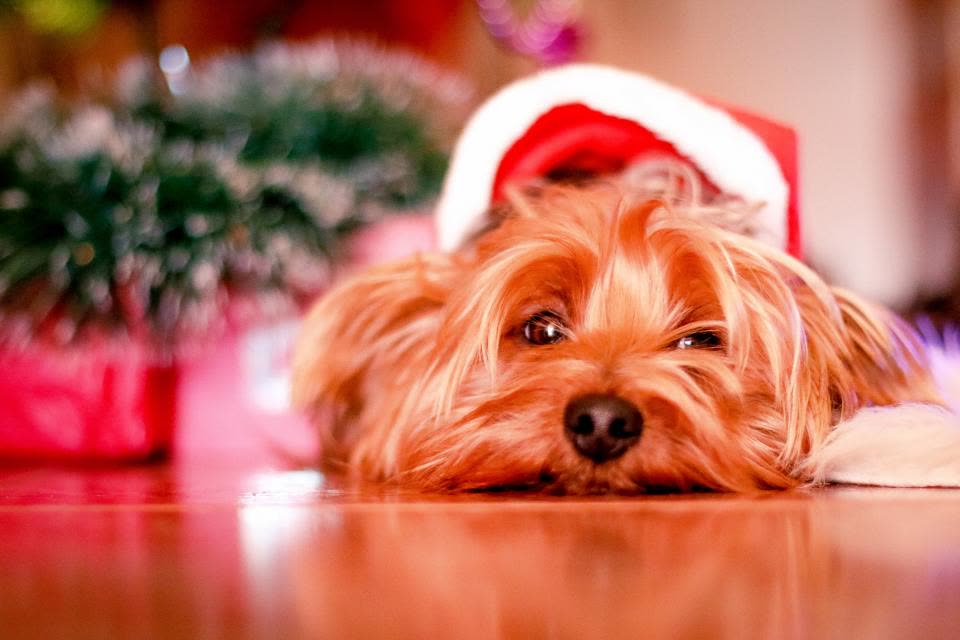 Before
A small dog in a Santa hat lying by the tree
The built-in Christmas motion, nothing written
Kling O3 · 5 s
Christmas AI video at a glance.
Stivio is a browser-based Christmas AI video maker: one holiday photo in, a short animated MP4 out. The facts, in one place.
- Input
- One photo for each Christmas AI video: JPEG, PNG or WebP, up to 10 MB. A family by the tree, a lit-up house, a pet in a Santa hat, a snowy street.
- Output
- An MP4 of 3 to 30 seconds, depending on the model, in the same shape as your photo: square, vertical or wide.
- Motion
- Built in for the holidays: gently falling snow, twinkling lights, small natural movement and a slow push-in. Or describe your own Christmas AI video motion.
- Models
- Kling O3, Seedance 2.5, Seedance 2.0, Wan 2.6, MiniMax H3 and Kling 2.6. The one-click button makes a 5-second Christmas AI video on Kling O3 at 720p.
- Time
- Usually 1 to 5 minutes per Christmas AI video. Failed renders are refunded automatically.
- Price
- A 5-second Kling O3 720p clip costs 10 credits. One-time packs: $19 for 160 credits or $59 for 640, and credits never expire.
- Free trial
- New accounts get 12 free credits (one free trial per person), enough for one Christmas AI video with a watermark.
- Rights
- You may use every Christmas AI video for personal and commercial purposes (Terms section 10.2). After any purchase, videos also have no watermark.
How to make a Christmas AI video in three steps.
You don't need a template, an editing app or a prompt. A Christmas AI video here takes one photo and a couple of minutes, all in your browser.
- 01
Upload a Christmas photo
Pick a holiday picture with a clear subject for your Christmas AI video: the family by the tree, the kids opening presents, your house with the lights on. Your Christmas photo to video clip keeps the photo's shape, so a vertical photo gives a vertical video.
- 02
Press Make my Christmas video
The Christmas AI video motion is already written for you: soft snow, twinkling lights, small movements and a slow push-in. Want something else, like the kids waving or a cat looking up? Type it in the optional box.
- 03
Download the MP4 and share it
Your Christmas AI video is usually ready in 1 to 5 minutes. Save the MP4 and send it to the family group chat, post it as a Reel or a Story, or add it to your holiday slideshow.
Tips for a better Christmas AI video.
The AI starts from your photo, so a good picture does most of the work. These habits help every Christmas AI video look cosy instead of strange.
Choose a sharp, well-lit photo
A clear photo gives a clean Christmas AI video, and a clean Christmas AI video is easy to share. Dark, blurry or heavily filtered pictures make the AI guess, and guessing is where faces and hands start to change.
Fewer faces hold up better
In a Christmas AI video, one to four people facing the camera move most naturally. A big group shot works too, but small faces in the back can soften as the Christmas AI video moves.
Photos with lights work best
Tree lights, candles, a lit-up porch or a fireplace give the AI something to twinkle and glow. That warm light is what makes a Christmas AI video feel like the holidays.
Leave room around the subject
Don't crop tight to heads or the top of the tree before you make a Christmas AI video. The camera moves a little during a Christmas AI video, and some space keeps everyone inside the frame.
Ask for one thing at a time
If you write your own Christmas AI video prompt, keep it to one idea: "the dog wags its tail", "snow falls outside the window", "she lifts the gift and smiles". One clear idea renders better than five.
Try a second model if a take looks off
Different models move people differently in a Christmas AI video. If one Christmas AI video bends a hand or a face, run the same photo on another model in the Studio and keep the better take.
Where people share a Christmas AI video.
A Christmas AI video is only a few seconds long, so it fits anywhere a holiday photo would, and gets more attention because it moves.
Family group chats and greetings
Send a Christmas AI video instead of a still photo to grandparents, cousins and friends far away. Add your own greeting in the message next to the Christmas AI video; Stivio doesn't put text on the video.
Reels, TikTok and Stories
Start from a vertical photo and your Christmas AI video is ready to post as a Reel, a TikTok or a Story. A short Christmas AI video is made for these feeds.
Old Christmas photos
Turn a scanned Christmas photo to video and watch a holiday from years ago move again in a Christmas AI video. For black-and-white family prints, our Animate old photos page (in the footer) has more tips.
Shops and small businesses
Make a Christmas AI video from a photo of your decorated shop window, a holiday product shot or your team in Santa hats, and post the Christmas AI video before the season sale. Paid videos carry no watermark, and every video includes commercial use rights.
Christmas AI video: your questions.
What people usually ask before they make a Christmas AI video with Stivio.
How do I make a Christmas AI video from a photo?
Upload a holiday photo on this page and press Make my Christmas video. The motion is built in, so you don't have to write anything. The AI renders a short MP4 in about 1 to 5 minutes. Sign-in with Google or Apple is required before your Christmas AI video renders.
Can I make a Christmas AI video for free?
Yes. New accounts get 12 free credits (one free trial per person), enough for your first Christmas AI video. Free videos carry a stivio.ai watermark across the middle of the frame; any paid plan or one-time pack removes it from every later video.
Is there a Christmas AI video generator with no watermark?
Yes. Free trial videos carry a stivio.ai watermark across the middle of the frame. After any purchase, a one-time pack or a plan, every new Christmas AI video you make is clean.
What is the best Christmas AI video generator?
It depends on what you want. If you have a holiday photo and want it to move, with snow, twinkling lights and your own people in it, Stivio does that in one click and lets you switch between six video models in the Studio. If you want a ready-made template with greeting text and music, or your face placed into a stock Santa scene, a template app fits better.
How much does a Christmas AI video cost?
A 5-second Kling O3 clip at 720p costs 10 credits. With the one-time packs ($19 for 160 credits, $59 for 640) that is about $1.19 or $0.92 per Christmas AI video, and the credits never expire. Longer clips, higher resolutions and other models cost more per second; the Studio shows the cost of every setting. Your first Christmas AI video is free.
Which AI model is best for a Christmas AI video?
Kling O3 is a strong all-rounder with steady faces and one of the lowest prices per second, which is why the one-click button uses it. Seedance 2.5 handles longer clips, up to 30 seconds, and can add sound. If a face or hand looks off, try the same photo on a second model and keep the better result.
Can I turn a Christmas photo to video without a prompt?
Yes. This page uses a built-in Christmas motion: soft falling snow, twinkling lights, small natural movement and a slow push-in. If you want something specific, such as the kids waving or the dog wagging its tail, type it in the optional box.
Will the faces in my photo stay the same?
Your photo is the first frame, and the built-in motion tells the AI to keep faces, clothes and decorations unchanged. Clear, front-facing faces usually hold up well; small faces in a big group can soften. It is AI video, so check the result before you share it. If a render fails, your credits come back automatically.
What is a good Christmas AI video prompt?
You don't need one: leave the box empty and the built-in Christmas AI video motion runs. If you want to write your own Christmas AI video prompt, describe one movement in plain words, for example "snow falls past the window while the lights blink", "the girl looks up at the star and smiles", "the cat bats at an ornament" or "steam rises from the cocoa mugs". Keep it short and about what is already in the photo.
Can I make a Christmas AI video from text only?
No. Stivio starts from a photo you upload, so your Christmas AI video shows your own family, home or pet. You can describe the motion in words, but you need a picture to begin with.
Can I put my face in a Christmas video?
Yes, in the sense that you upload a photo of yourself or your family and the AI animates that photo. Stivio does not swap your face into a ready-made Santa or elf scene.
Does the Christmas AI video include music or a greeting?
No music library or greeting text is added. Add a song or a "Merry Christmas" title in your video editor or messaging app afterwards. Some models can add AI sound: on Kling O3, Kling 2.6 and the Seedance models you can switch it on in the Studio, and Wan 2.6 always includes it.
Can I make a Christmas AI video for kids?
Yes. A photo of the kids by the tree or with their presents makes a sweet Christmas AI video to send to grandparents, and the built-in Christmas AI video motion keeps it gentle. Only upload photos you have the right to use, and be careful with the share link, since anyone who has it can watch the video.
Can I make a vertical Christmas AI video for TikTok and Reels?
Yes. The video follows your photo's shape, so a vertical 9:16 photo gives a vertical Christmas AI video, a square photo gives a square one and a wide photo gives a wide one.
Can I get a GIF instead of an MP4?
Stivio delivers every Christmas AI video as an MP4. If you need a GIF for a card or an email, convert the Christmas AI video MP4 with a free converter.
Can I use a Christmas AI video for my business?
Yes. Every video includes personal and commercial use rights, and paid videos carry no watermark, so a Christmas AI video of your shop or product can go in posts and ads. Only use photos you own or have permission to use.
How long does a Christmas AI video take?
Usually 1 to 5 minutes for each Christmas AI video. You can keep the page open to watch it land, or find it later in your history.
Are my Christmas photos kept private?
They are never listed publicly. Videos are unlisted: only people you send the link to can open them, and they are kept out of search engines. Stivio never uses your uploads to train its own models and never sells them or shares them for advertising. Your photo goes only to the services that check, render and store it, listed in Privacy Policy section 7. Anyone you send a video link to can also see the original photo.
More ways to make videos from photos
Christmas AI video from one holiday photo.
Upload a Christmas photo, press one button and get your Christmas AI video in a few minutes. Sign in with Google or Apple, first video free, no card needed.